
Sample
Chapter Visual Basic Level 3 for VB5
Controls
Common Dialog Control
Objectives:
·
Describe the Common Dialog control.
·
Describe the functions of the following Common
Dialog control methods and properties: ShowOpen, ShowPrinter, ShowSave,
CancelError, FileName, Filter, FilterIndex, and Flags.
Tasks such as opening files, saving files, selecting fonts, selecting colours and printing text must be carried out by most programs. These tasks usually involve interaction with the user. The Common Dialog control allows you to display the standard dialog boxes used by Windows itself. This saves the programmer the rather tedious task of creating these dialog boxes. It also ensures that these dialog boxes are the same across all Windows programs making it easier for users to use programs.
The Common Dialog control is not visible at run time. The standard prefix for naming Common Dialog controls is cdl.
The Common Dialog control has methods for displaying the standard dialog boxes. These are as follows:
· ShowOpen displays the Open dialog box
· ShowSave displays the Save As dialog box
· ShowPrinter displays the Print dialog box
· ShowColor displays the Color dialog box
· ShowFont displays the Font dialog box
For example, to display the Save As dialog box the ShowSave method is used:
cdlSave.ShowSave
An important property of the Common Dialog control is the CancelError property. This may be set to either True or False. When CancelError is set to True cancelling the dialog box using the Cancel button produces a run time error which should be handled using On Error GoTo .... For example:
cdlSave.CancelError
= True
On Error GoTo
HandleError
cdlSave.ShowSave
‘carry out
processing here . . .
Exit Sub
HandleError:
‘user has
cancelled dialog box, code to handle the error . . .
The Common Dialog control has numerous properties some of which are not relevant to all the different types of standard dialog box. Consult the Visual Basic help for a full list of properties.
The FileName property is used with the ‘Open’ and ‘Save As’ dialog boxes to obtain the file name selected by the user as below:
Dim sFileName As String
sFileName = cdlOpenSave.FileName
The Filter property is used with the ‘Open’ and ‘Save As’ dialog boxes to restrict the files displayed to only certain types of file. For example, to display only *.txt files the Filter property is set as below:
cdlOpenSave.Filter = "Text
(*.txt)|*.txt"
It is possible to have more than one filter and the user can select one of the filters using a drop down list. For example, the code below creates two filters.
cdlOpenSave.Filter = "Text
(*.txt)|*.txt|All Files(*.*)|*.*"
The index of the filter selected by the user can be obtained using the FilterIndex property. The first filter has a value of 1.
Dim nIndex As Integer
cdlOpenSave.ShowSave
nIndex = cdlOpenSave.FilterIndex
The Flags property is used to alter the behavior of the standard dialog boxes. The Flags property can be set to numerous values depending on the type of dialog box and the required behavior. Use the Visual Basic help for a full list.
A common use for the Flags property is to set the behavior of a Color dialog box so that the value of its Color property will have the focus when the dialog box is displayed. This is done by setting the Flags property to the value of the Visual Basic constant cdlCCRGBInit as below:
cdlColor.Flags = cdlCCRGBInit
cdlColor.Color = &HFF ‘red
cdlColor.ShowColor ‘red square will have
the focus when displayed
The Common Dialog control can be added to a project by selecting it in the Toolbox and drawing it on the form. If you have started your project as a Standard.exe you may have to add the Common Dialog control to your Toolbox. This is done by selecting Project|Components... and checking the "Microsoft Common Dialog Control" check box.
The Common Dialog Program
Objectives:
·
Use the Common Dialog control for file Open, Save
and Print operations.
·
Use the CancelError property in conjunction with an
error handler to manage the common dialog Cancel button.
Start a new project and name the form frmCommon. Add a Text Box and name it txtUser. Add two Common Dialog boxes and name one cdlOpenSave and the other cdlPrint.
The positioning of cdlOpenSave and cdlPrint is not important as Common Dialog controls are not visible at run time. The position and size of txtUser are not important as the code in this program will automatically resize the Text Box to fill the form.
Set the MultiLine property of txtUser to True. Set the Caption property of frmCommon to "Common Dialog".
Use the Menu Editor to create the following menus:
|
Name |
Caption |
Shortcut |
|
mnuFile |
&File |
|
|
mnuFile_Open |
&Open |
Ctrl+O |
|
mnuFile_Save |
&Save |
Ctrl+S |
|
mnuFile_SaveAs |
Save &As |
|
|
mnuFile_Sep1 |
- |
|
|
mnuFile_Print |
|
Ctrl+P |
|
mnuFile_Sep2 |
- |
|
|
mnuFile_Exit |
E&xit |
|
&File
...&Open
...&Save
...Save &As
...-
...&Print
...-
...E&xit
Enter the following code:
Option Explicit
'bSaved is True
if file already saved
'i.e. the file
name is already known
Private bSaved
As Boolean
Private
sFileName As String
'bTextChanged is
True if user has changed text since the last
'file save
operation
Private
bTextChanged As Boolean
Private Sub
Form_Load()
'text not yet
saved
bSaved = False
bTextChanged =
False
End Sub
Private Sub
Form_Resize()
'resizes txtUser
to fit the form
txtUser.Top = 0
txtUser.Left = 0
txtUser.Width =
Me.ScaleWidth
txtUser.Height =
Me.ScaleHeight
End Sub
Private Sub
mnuFile_Exit_Click()
End
End Sub
Private Sub
mnuFile_Open_Click()
'displays Open
dialog box and handles cancel error
Dim nFileNo As
Integer
cdlOpenSave.Filter
= "Text (*.txt)|*.txt|All Files(*.*)|*.*"
cdlOpenSave.CancelError
= True
On Error GoTo
HandleError
cdlOpenSave.ShowOpen
nFileNo =
FreeFile
sFileName =
cdlOpenSave.filename
Open sFileName
For Input As nFileNo
txtUser.Text =
Input$(LOF(nFileNo), nFileNo)
Close nFileNo
bSaved = True
bTextChanged =
False
Exit Sub
HandleError:
Exit Sub
End Sub
Private Sub
mnuFile_Print_Click()
'displays Print
dialog box and handles cancel error
cdlPrint.CancelError
= True
On Error GoTo
HandleError
cdlPrint.ShowPrinter
Printer.Print
txtUser.Text
Printer.EndDoc
Exit Sub
HandleError:
Exit Sub
End Sub
Private Sub
mnuFile_Save_Click()
'if code has not
been saved then user can choose file to save in
'else the file
is saved automatically
If bSaved =
False Then
mnuFile_SaveAs_Click
Else
SaveText
End If
End Sub
Private Sub
mnuFile_SaveAs_Click()
'displays Save
As dialog box and handles cancel error
cdlOpenSave.Filter
= "Text (*.txt)|*.txt|All Files (*.*)|*.*"
cdlOpenSave.CancelError
= True
On Error GoTo
HandleError
cdlOpenSave.ShowSave
sFileName =
cdlOpenSave.filename
SaveText
Exit Sub
HandleError:
Exit Sub
End Sub
Private Sub
SaveText()
'save txtUser to
file sFileName
Dim nFileNo As
Integer
nFileNo =
FreeFile
On Error GoTo
HandleFileError
Open sFileName
For Output As nFileNo
Print #nFileNo,
txtUser
Close nFileNo
bSaved = True
bTextChanged =
False
Exit Sub
HandleFileError:
MsgBox
"Unable to save file " & sFileName, vbExclamation
End Sub
Private Sub
txtUser_Change()
bTextChanged =
True
End Sub
Test that the Common Dialog program opens and saves text files correctly. Check that when the form is resized the Text Box resizes to fill the form.
Exercise using the Common Dialog program
In the mnuFile_Exit_Click event procedure add code to do the following:
· if the contents of txtUser have been changed use a message box with Yes, No and Cancel buttons to inform the user that the text has changed and ask if the user wants to save the changes
· if the user presses the Cancel button then do not terminate the program
· if the user presses the No button then terminate the program
· if the user presses the Yes button then call the mnuFile_Save_Click event procedure
Test your amended code thoroughly.
Combo Box Control
Objectives:
·
Describe the applications of the ComboBox control.
A ComboBox control is used to select an item from a list of items.
There are three styles of ComboBox which are obtained by setting the Style property to one of three values:
· 0 - Dropdown Combo The default style. The ComboBox has an edit area and a list that drops down when the arrow is clicked. When the user has made a selection the item appears in the edit area and the list rolls up.
· 1 - Simple Combo Has an edit area but no drop down list. Either the box must be made large enough for all the items to be visible or the user has to move through the list using the arrow keys.
· 2 - Dropdown List The user cannot enter text. The list drops down when the arrow is clicked and rolls back up after the user has made a selection.
Items may be added to the ComboBox using the AddItem method. For example:
cboSimpsons.AddItem("Homer")
cboSimpsons.AddItem("Lisa")
cboSimpsons.AddItem("Bart")
The items are automatically indexed starting at 0. If the Sorted property is set to True then the list will be sorted in alphabetical order.
Adding items to a ComboBox is referred to as populating a ComboBox. Items can be added or changed using the List property.
cboSimpsons.List(0)
= "Homer"
cboSimpsons.List(1)
= "Lisa"
cboSimpsons.List(2)
= "Bart"
An item can be selected using the ListIndex property. The code below would display "Lisa" in the edit area of the Combo Box cboSimpsons.
cboSimpsons.ListIndex = 1
When the user makes a choice the ListIndex property indicates index of the item chosen. Thus the index of the item selected can be assigned to a variable as below:
Dim nTemp As
Integer
nTemp =
cboSimpsons.ListIndex
The text displayed in the edit area can be set or retrieved using the Text property. Note however, that when the Style property is set to 2-DropdownList, the Text property is read only. For example the code below displays "Homer" in the edit area of cboSimpsons.
cboSimpsons.Text =
"Homer"
To get the contents of the edit area of a Combo Box the following code may be used:
Dim sTemp As String
sTemp =
cboSimpsons.Text
An item can be removed from a Combo Box using the RemoveItem method. For example, the code below will remove the first item from the Combo Box cboSimpsons.
cboSimpsons.RemoveItem (0)
The entire contents of a Combo Box can be cleared using the Clear method:
cboSimpsons.Clear
The Logic Tutor program
Objectives:
·
Use the AddItem method to populate a ComboBox or
List control.
·
Use the List and ListIndex properties to set and
return list items.
The Logic Tutor program uses Combo Boxes to demonstrate logical operations.
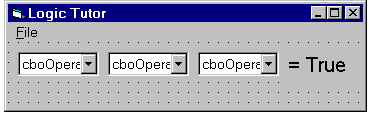
Create a form as below using 3 ComboBoxes and a Label. From left to right name the ComboBoxes cboOperand1, cboOperator, cboOperand2. Name the Label lblResult. Set the Style property of the ComboBoxes to 2-Dropdown List; this prevents the user from being able to enter text. Set the form Caption property to "Logic Tutor" and create a standard File|Exit menu.
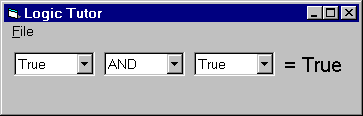
When running the program will appear as below:
Enter the code below:
Option Explicit
'index values
for cboOperand1 and cboOperand2
Const B_TRUE = 1
Const B_FALSE =
0
'index values
for cboOperator
Const OP_AND = 0
Const OP_OR = 1
'variable
"nOperator" takes values of OP_AND or OP_OR
Private
nOperator As Integer
Private
bOperand1 As Boolean, bOperand2 As Boolean
Private Sub
Form_Load()
'populate and
initialize ComboBoxes
'using List to
populate Combo Boxes
cboOperand1.List(B_FALSE)
= "False"
cboOperand1.List(B_TRUE)
= "True"
cboOperator.List(OP_AND)
= "AND"
cboOperator.List(OP_OR)
= "OR"
'using AddItem
to populate a Combo Box
cboOperand2.AddItem
("False")
cboOperand2.AddItem
("True")
'set the initial
ListIndex values
cboOperand1.ListIndex
= B_TRUE
cboOperator.ListIndex
= OP_AND
cboOperand2.ListIndex
= B_TRUE
lblResult.Caption
= "= True"
End Sub
Private Sub
cboOperand1_Click()
'update the
value of bOperand1 and evaluate the
'resulting logical
expression
If
cboOperand1.ListIndex = B_TRUE Then
bOperand1 = True
Else
bOperand1 =
False
End If
Evaluate
End Sub
Private Sub
cboOperand2_Click()
'update the
value of bOperand2 and evaluate the
'resulting
logical expression
If
cboOperand2.ListIndex = B_TRUE Then
bOperand2 = True
Else
bOperand2 =
False
End If
Evaluate
End Sub
Private Sub
cboOperator_Click()
'set variable
nOperator to the selected logical operator
'and evaluate
the resulting logical expression
If
cboOperator.ListIndex = OP_AND Then
nOperator =
OP_AND
ElseIf
cboOperator.ListIndex = OP_OR Then
nOperator =
OP_OR
End If
Evaluate
End Sub
Private Sub
mnuFile_Exit_Click()
End
End Sub
Public Sub
Evaluate()
'evaluates the
expression "bOperand1 nOperator bOperand2"
'and displays
the result
Dim bResult As
Boolean
If nOperator =
OP_AND Then
bResult =
bOperand1 And bOperand2
ElseIf nOperator
= OP_OR Then
bResult =
bOperand1 Or bOperand2
End If
If bResult Then
lblResult.Caption
= "= True"
Else
lblResult.Caption
= "= False"
End If
End Sub
Test the Logic Tutor program.
Exercise using the Logic Tutor program
You are required to add the logical operator XOR (eXclusive OR) to the Logic Tutor program. Logical operations are often expressed as truth tables and the truth tables for AND, OR and eXclusive OR are given below:
|
AND |
|
|
|
OR |
|
|
|
XOR |
|
|
|
a |
b |
result |
|
a |
b |
result |
|
a |
b |
result |
|
False |
False |
False |
|
False |
False |
False |
|
False |
False |
False |
|
False |
True |
False |
|
False |
True |
True |
|
False |
True |
True |
|
True |
False |
False |
|
True |
False |
True |
|
True |
False |
True |
|
True |
True |
True |
|
True |
True |
True |
|
True |
True |
False |
In the General section of the form add another constant OP_XOR = 2.
In the Form_Load event procedure add code to populate cboOperator with "XOR". Add this item after "AND" and "OR" so it is the third item (ListIndex 2).
Add code to the cboOperator_Click event procedure to set the variable nOperator to OP_XOR when "XOR" is selected.
Add code to the Evaluate procedure to display the correct result. Note that there is an eXclusive OR operator in Visual Basic Xor.
Use the truth tables to check that your program functions correctly.
Pop Up Menus
Objectives:
·
Describe pop up menus and relevant properties of the
Menu control.
Pop up menus are used to offer options to the user in response to events in a specific area of a form. A pop-up menu appears in response to a specific event, often a right mouse button click.
A pop-up menu is created in the same way as any other menu using the Menu Editor but usually the menu is hidden by setting the Visible property of the top-level menu item to False (unchecked).
To have the pop-up menu appear you must show the menu using the PopUpMenu method. The code below displays a menu called mnuPopUp.
Me.PopUpMenu mnuPopUp
Menu Arrays
A menu array is created using the Menu Editor. All the items in the menu array have the same Name and an individual Index number. All the items in a menu array must be on the same level.
The Pop Up Menus Program
Objectives:
·
Create and use a menu control array and make use of
separator bars to differentiate menu groups.
The Pop Up Menus program shows a pop up menu in response to a right mouse button click over a Label. The user is offered the options of changing the font, background colour or printing the text of the Label.
Create the form below using two Labels and a Common Dialog box.
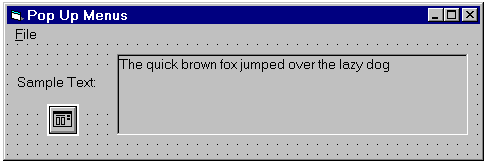
Name the smaller Label lblSample1 and set the Caption property to "Sample Text:". Name the larger Label lblSample2, set the Caption property to "The quick brown fox jumped over the lazy dog" and set the BorderStyle property to 1 - Fixed Single.
|
Name |
Caption |
Index |
Visible |
|
mnuFile |
&File |
|
Ö |
|
mnuFile_Exit |
E&xit |
|
Ö |
|
mnuText |
&Text |
|
|
|
mnuOptionsArray |
&Font |
0 |
Ö |
|
mnuOptionsArray |
&Colour |
1 |
Ö |
|
mnuOptionsArray |
- |
2 |
Ö |
|
mnuOptionsArray |
|
3 |
Ö |
The menu levels are as below:
&File
...E&xit
&Text
...&Font
...&Colour
...-
...&Print
Note that the items in the mnuOptionsArray menu array are all on the same level.
Enter the following code:
Option Explicit
'constants for
menu selection
Const MNU_FONT =
0
Const MNU_COLOUR
= 1
Const MNU_PRINT
= 3
Private Sub
lblSample2_MouseDown(Button As Integer, Shift As Integer, x As Single, Y As
Single)
'if right-hand
button then display pop-up menu
If Button = 2
Then
PopupMenu
mnuText
End If
End Sub
Private Sub
mnuFile_Exit_Click()
End
End Sub
Private Sub
mnuOptionsArray_Click(Index As Integer)
'user selects
Font, BackColor or Print using dialog boxes
Dim x As Printer
Select Case
Index
Case MNU_FONT
CommonDialog1.CancelError
= True
On Error GoTo
ErrHandler
'cdlCFEffects ~
strikethrough, underline, and color effects
'cdlCFBoth ~ list
the available printer AND screen fonts
CommonDialog1.Flags
= cdlCFEffects Or cdlCFBoth
'set initial
values
CommonDialog1.FontName
= lblSample2.Font.Name
CommonDialog1.FontSize
= lblSample2.Font.Size
CommonDialog1.FontBold
= lblSample2.Font.Bold
CommonDialog1.FontItalic
= lblSample2.Font.Italic
CommonDialog1.FontUnderline
= lblSample2.Font.Underline
CommonDialog1.FontStrikethru
= lblSample2.FontStrikethru
CommonDialog1.Color
= lblSample2.ForeColor
' Display the
Font dialog box
CommonDialog1.ShowFont
'update
lblSample2
lblSample2.Font.Name
= CommonDialog1.FontName
lblSample2.Font.Size
= CommonDialog1.FontSize
lblSample2.Font.Bold
= CommonDialog1.FontBold
lblSample2.Font.Italic
= CommonDialog1.FontItalic
lblSample2.Font.Underline
= CommonDialog1.FontUnderline
lblSample2.FontStrikethru
= CommonDialog1.FontStrikethru
lblSample2.ForeColor
= CommonDialog1.Color
Exit Sub
Case MNU_COLOUR
CommonDialog1.CancelError
= True
On Error GoTo
ErrHandler
'cdlCCRGBInit ~
allows the initial color value for the dialog
'box to be set
CommonDialog1.Flags
= cdlCCRGBInit
CommonDialog1.Color
= lblSample2.BackColor
' display the
Color Dialog box
CommonDialog1.ShowColor
' Set the form's
background color to selected color
lblSample2.BackColor
= CommonDialog1.Color
Case MNU_PRINT
CommonDialog1.CancelError
= True
On Error GoTo
ErrHandler
'cdlPDReturnDC ~
Returns a device context for the printer
'selection made
in the dialog box. The device context is
'returned in the
dialog box's hDC property.
CommonDialog1.Flags
= cdlPDReturnDC
'display the
print dialog box
CommonDialog1.ShowPrinter
'set Printer to
selected printer
For Each x In
Printers
If x.hDC =
CommonDialog1.hDC Then
Set Printer = x
Exit For
End If
Next x
'print to
selected printer
Printer.Print
lblSample2.Caption
Printer.EndDoc
End Select
Exit Sub
ErrHandler:
'User pressed
the Cancel button
Exit Sub
End Sub
Test the Pop Up Menus program
Exercise using the Pop Up Menus program
Enlarge the form and add a Text Box. Run the program and right click on the Text Box. You will see that a Text Box has it’s own built in pop-up menu with fully functional Cut and Paste facilities.
The Dynamic Menu Arrays Program
objectives:
·
Create and use a menu control array and make use of separator
bars to differentiate menu groups.
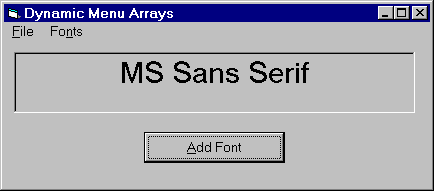
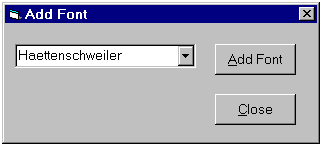
Start a new project and create two forms frmMenus and frmAddFont. Save the forms as Menus.frm and AddFont.frm. Save the project as Menus.vbp. Set the BorderStyle property of frmAddFont to 3 - Fixed Dialog. The two forms when completed will appear as below (when the program is running).
frmMenus:
frmAddFont:
frmMenus has one Label named lblSelectedFont and one Command Button named cmdAddFont. Set the BorderStyle property of lblSelectedFont to 1 - Fixed Single and the Caption property of the Command Button to Add Font.
Add the following menus to frmMenus:
|
Name |
Caption |
Index |
|
mnuFile |
&File |
|
|
mnuFile_Exit |
E&xit |
|
|
mnuFonts |
Fo&nts |
|
|
mnuFonts_Fonts |
Default |
0 |
The level of the menus should be as below.
&File
...E&xit
Fo&nts
...Default
Make sure that the start up form is frmMenus. frmAddFont is a user defined dialog box. Enter the following code in frmMenus:
Option Explicit
'nFontCount is
the number of items in mnuFonts_Fonts array
Private
nFontCount As Integer
Private
sDefaultFont As String
Private Sub
Form_Load()
'design time font
of lblSelected used as default font
sDefaultFont =
lblSelectedFont.Font
lblSelectedFont.Caption
= lblSelectedFont.Font
mnuFonts_Fonts(0).Caption
= "Default"
'add a menu item
and create a separator bar
Load
mnuFonts_Fonts(1)
mnuFonts_Fonts(1).Caption
= "-"
'make separator
bar invisible
mnuFonts_Fonts(1).Visible
= False
nFontCount = 1
End Sub
Private Sub
cmdAddFont_Click()
frmAddFont.Show
vbModal, Me
End Sub
Private Sub
mnuFile_Exit_Click()
End
End Sub
Private Sub
mnuFonts_Fonts_Click(Index As Integer)
'sets the Font
of lblSelectedFont to that selected by user
If Index = 0
Then
lblSelectedFont.Font
= sDefaultFont
lblSelectedFont.Caption
= sDefaultFont
lblSelectedFont.FontSize
= 18
Exit Sub
End If
'update
lblSelectedFont
lblSelectedFont.Font
= mnuFonts_Fonts(Index).Caption
lblSelectedFont.Caption
= mnuFonts_Fonts(Index).Caption
lblSelectedFont.FontSize
= 18
End Sub
Public Sub
AddFont(sFont As String)
'adds sFont to
the menu array mnuFonts_Fonts
Dim i As
Integer, bFontExists As Boolean
'empty string
cannot be a font
If sFont =
"" Then Exit Sub
'check if sFont
is already in the menu array mnuFonts_Fonts
For i = 0 To
nFontCount
If
mnuFonts_Fonts(i).Caption = sFont Then Exit Sub
Next i
'check that
sFont is an available screen font
bFontExists =
False
For i = 0 To
Screen.FontCount - 1
If
Screen.Fonts(i) = sFont Then
bFontExists =
True
Exit For
End If
Next i
If Not
bFontExists Then Exit Sub
'make sure
separator bar is visible
mnuFonts_Fonts(1).Visible
= True
'add font name
to menu array mnuFonts_Fonts
nFontCount =
nFontCount + 1
Load
mnuFonts_Fonts(nFontCount)
mnuFonts_Fonts(nFontCount).Caption
= sFont
End Sub
To frmAddFont add a Combo Box named cboFonts and two Command Buttons named cmdAddFont and cmdClose. Set the Sorted property of cboFonts to True and the Style property to 2 - Dropdown List. Set the Caption property of cmdAddFont to Add Font and the Caption property of cmdClose to Close. Set the TabIndex property of cboFonts to 0, that of cmdAddFont to 1 and that of cmdClose to 2.
Enter the following code in frmAddFont:
Option Explicit
Private Sub
Form_Load()
'initialize
cboFonts with available fonts
Dim i As Integer
For i = 0 To
Screen.FontCount - 1
cboFonts.AddItem
(Screen.Fonts(i))
Next i
cboFonts.Text =
cboFonts.List(0)
'centre the form
on the screen
Me.Left =
(Screen.Width - Me.Width) / 2
Me.Top =
(Screen.Height - Me.Height) / 2
End Sub
Private Sub
cboFonts_Click()
cmdAddFont.Enabled
= True
End Sub
Private Sub
cmdAddFont_Click()
'adds selected
font by calling AddFont
frmMenus.AddFont
cboFonts.Text
cmdAddFont.Enabled
= False
End Sub
Private Sub
cmdClose_Click()
Me.Hide
End Sub
Now test the program. When the program is started the Fonts menu should contain only the item Default. When the Add Font button is pressed then the frmAddFont dialog box should appear. The available screen fonts should be listed in alphabetical order in cboFonts. Once a font has been chosen pressing the Add Font button on the dialog box will add the font to the Fonts menu on the form frmMenus. More than one font can be added before closing the frmAddFont dialog box if desired.
Adding a font by calling the procedure AddFont automatically updates nFontCount thus ensuring that the value of nFontCount is always correct. The procedure AddFont checks that the font exists and carries out the entire process of adding it to the menu. This improves the modularity of the code making it easier to reuse and maintain. If any other module (in this case frmAddFont) needs to add a font to the Font menu of frmMenus it only needs to call the procedure AddFont with one String argument.
Exercise using the Dynamic Menu Arrays
program
The client is not happy with the fact that the items in the Fonts menu are not sorted making it difficult to see if a particular font is present. You are to change the code so the "Default" item and separator bar remain at the top of the menu and the fonts are placed in alphabetical order below the separator bar.
Although it would be possible to write a sort routine to carry this out it can be achieved more easily using an invisible Combo Box. The Combo Box will do the sorting for you!
Add a Combo Box named cboMenuFonts to frmMenus. Set the Sorted property to True and the Visible property to False.
Change the code in the procedure AddFont so that sFont is added to cboMenuFonts instead of mnuFonts_Fonts. Then use a For Next loop to copy the contents of cboMenuFonts into the menu array mnuFonts_Fonts using the List property of the Combo Box. Note that the first two items of mnuFonts_Fonts are "Default" and a separator bar and must not be changed. This means you will have to be careful with the indexes to make sure that the correct item in the Combo Box is copied into the correct position in the menu array.
Note how updating the code in AddFont makes no difference to the way it is called from another module. The changes are localized avoiding side effects in other parts of the code.
Created by J Tench Last Updated 3.1.2012